
Best Webcam for Zoom Meetings That Works Seamlessly with Microsoft Teams
The best webcam for Zoom meetings that also works seamlessly with Microsoft Teams needs universal USB Video Class (UVC) compatibility, reliable performance across both platforms without proprietary drivers, and consistent video quality regardless of which video software you're using. Platform-agnostic webcams eliminate the frustration of having different cameras for different meeting types and ensure professional video quality whether you're joining a Zoom call or a Teams meeting.
Why Cross-Platform Webcam Compatibility Matters
Modern hybrid workers don't use just one video platform. According to Gartner workplace research, 73% of organizations use multiple video conferencing platforms simultaneously as of 2024. Your morning standup might be on Zoom, afternoon client call on Teams, and evening collaboration on Meet.
The problem? Not all webcams perform equally across platforms. Some optimize for specific platforms through proprietary integrations, while others deliver inconsistent quality depending on the software. Microsoft's compatibility research shows that 68% of video quality complaints stem from webcams that aren't properly certified for both Zoom and Teams.
The best webcam for Zoom meetings must work identically well on Microsoft Teams—same video quality, same audio performance, same feature set. This means USB Video Class (UVC) and USB Audio Class (UAC) compliance, certification from both platforms when available, and proven reliability across different video conferencing software without requiring platform-specific configurations.
TL;DR
The best webcam for Zoom meetings that works seamlessly with Microsoft Teams is platform-agnostic with UVC/UAC compliance, dual certification from both Zoom and Microsoft, and consistent performance regardless of software. Top picks include the Coolpo AI Pana ($598.98) with Zoom and Teams certification plus 360° coverage, Logitech Brio 4K ($200-$250) with universal compatibility and 4K resolution, and Poly Studio P15 ($550-$650) with all-in-one audio/video design. All work plug-and-play with both platforms without proprietary drivers or platform-specific setup.
What Makes a Webcam Work Well on Both Zoom and Teams
The best webcam for Zoom meetings that also excels on Microsoft Teams requires specific technical compatibility beyond just "plugging in":
Universal USB standards:
USB Video Class (UVC) and USB Audio Class (UAC) compliance ensures the webcam works with any video software through standard protocols. No proprietary drivers means no platform-specific configurations to manage.
Dual platform certification:
While not mandatory, certification from both Zoom and Microsoft validates that the webcam meets performance standards on both platforms. "Zoom Certified" and "Microsoft Teams Certified" designations indicate testing and optimization.
Consistent feature availability:
Core features like autofocus, auto-framing, and exposure control should work identically whether you're on Zoom or Teams. Some webcams offer different feature sets on different platforms—avoid these.
Single-cable simplicity:
USB connection that provides power, video, and audio through one cable. No platform-specific adapters or additional setup steps when switching between Zoom and Teams meetings.
Automatic detection:
Both Zoom and Teams should detect and enable the webcam immediately without manual configuration, driver installation, or troubleshooting.
Top 5 Webcams Certified for Both Zoom and Teams
Coolpo AI Pana ($598.98)
Best for: Teams using both Zoom and Microsoft Teams for group hybrid meetings (3-15 people)
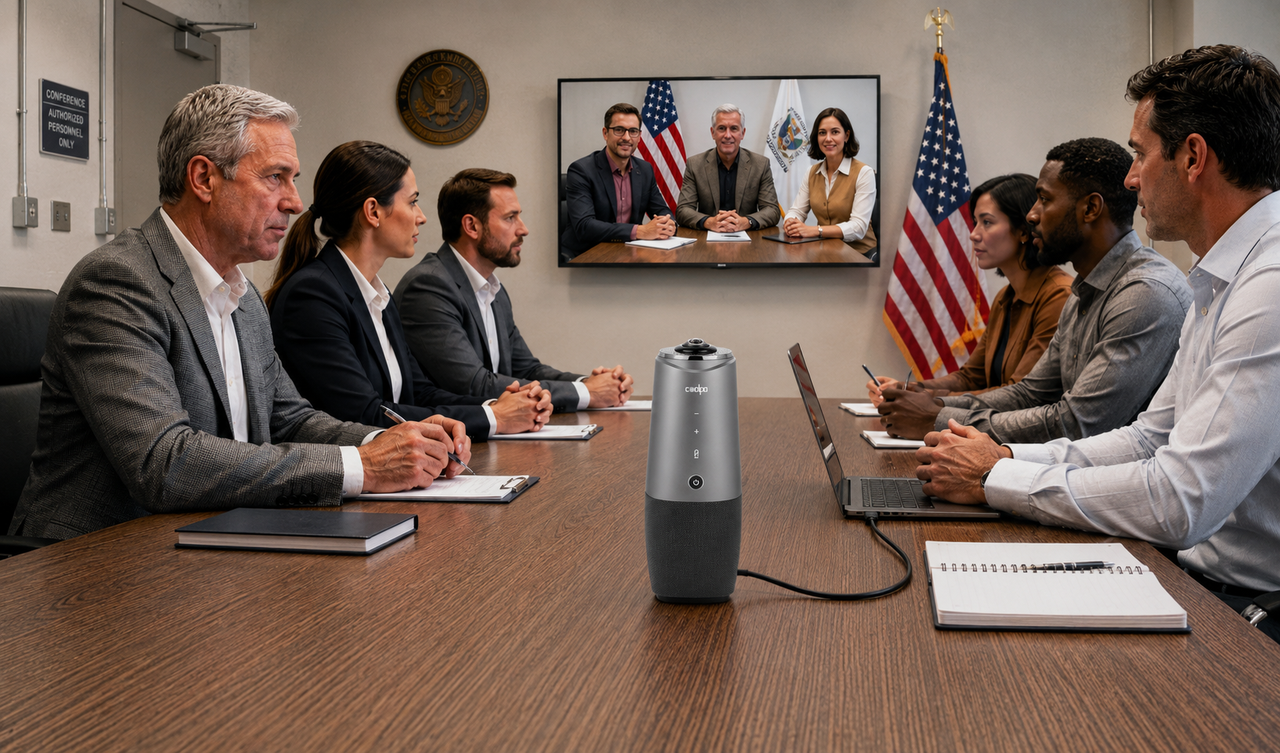
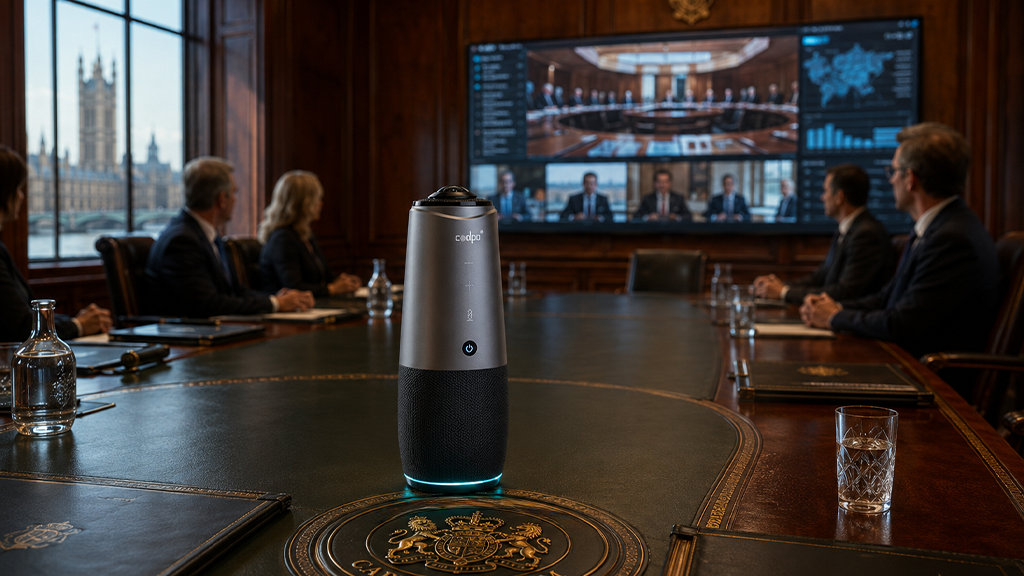
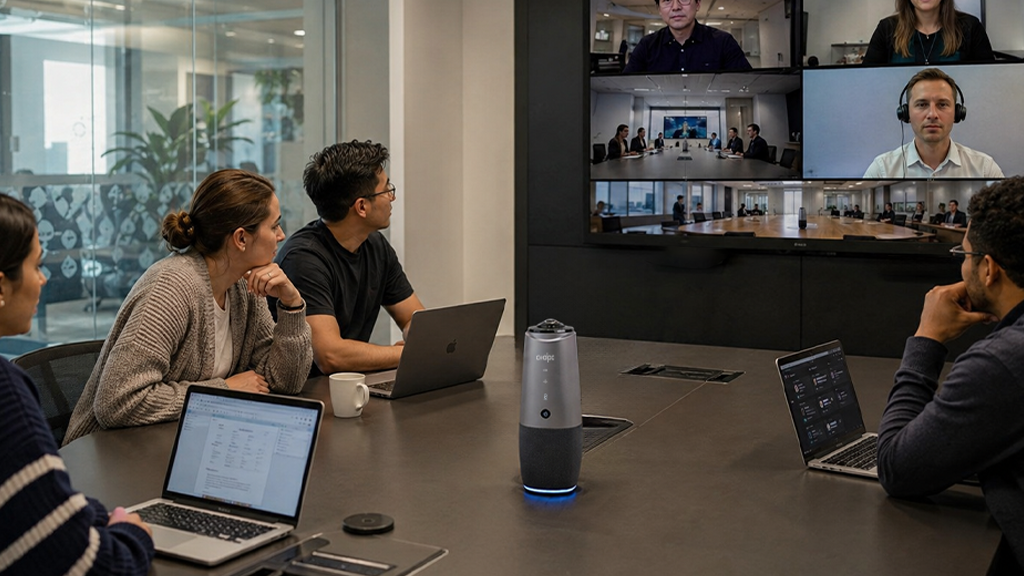
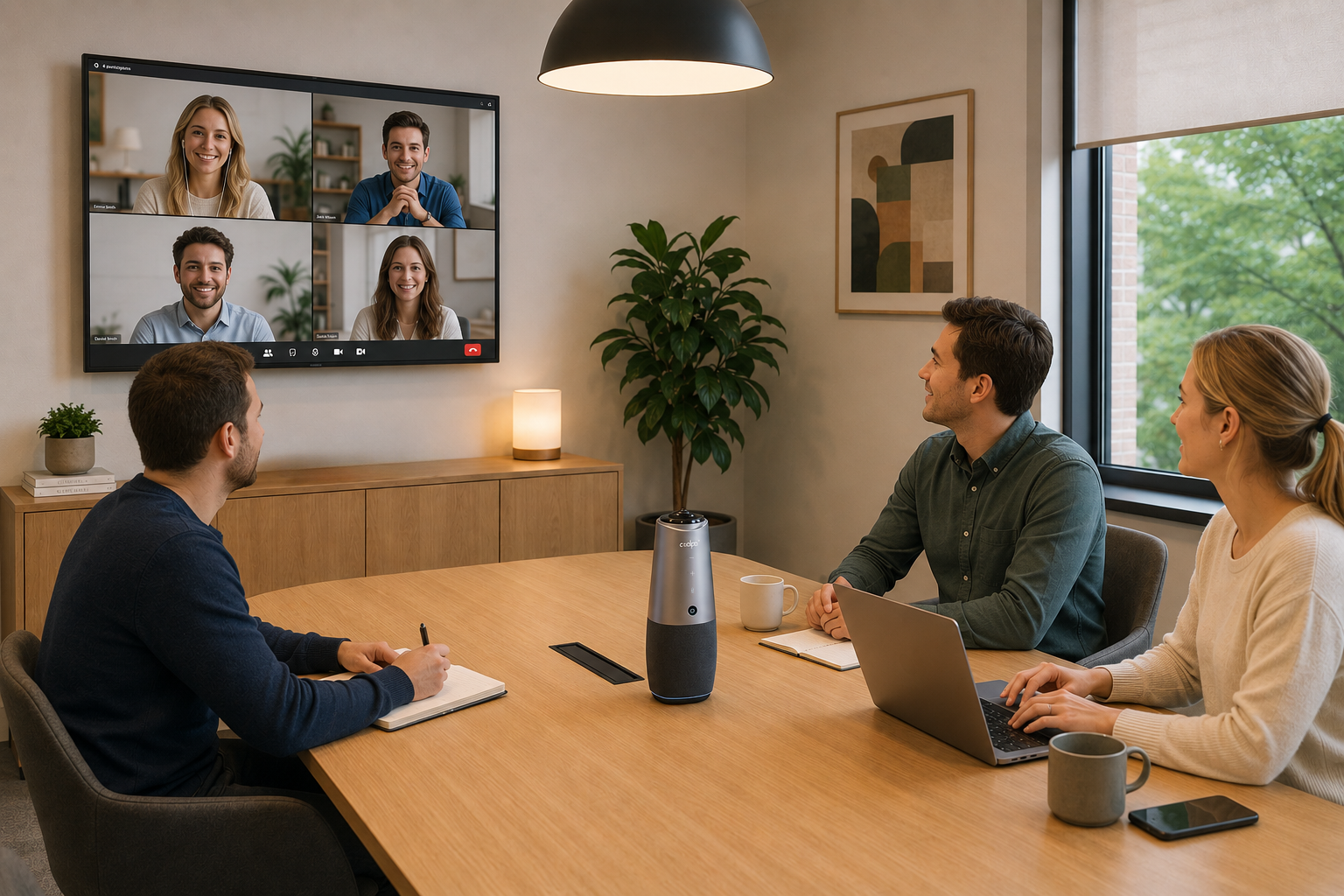
The Coolpo AI Pana is the best webcam for Zoom meetings that works seamlessly with Microsoft Teams when you need to capture multiple participants. It's certified for both platforms and delivers identical performance regardless of which software you're using.
Key features:
- 4K 360° video captures all participants equally
- 8 beamforming microphones with 15-foot pickup
- AI speaker tracking works on both Zoom and Teams
- Dual positioning modes (panoramic + division)
- USB plug-and-play (single cable)
- Zoom Certified and Microsoft Teams Certified
Why it's the best for both platforms: The 360° coverage solves the "blind spot" problem on both Zoom and Teams calls where remote participants can't see everyone in-room. The AI speaker tracking automatically focuses on active speakers on both platforms without platform-specific configuration. The integrated 8-mic array provides professional audio quality whether you're in a Zoom meeting or Teams call.
Cross-platform setup: Connect via USB. Both Zoom and Teams automatically detect "Coolpo AI Pana" as camera and microphone. Select it in video/audio settings. No additional configuration needed for either platform.
Limitation: Overkill if you only do solo 1-on-1 calls. Simpler webcams handle individual meetings adequately.
Logitech Brio 4K ($200-$250)
Best for: Individual users prioritizing maximum video quality on both platforms
Key features:
- 4K Ultra HD or 1080p at 60fps
- 90° field of view with 5x digital zoom
- RightLight 3 with HDR
- Dual omnidirectional microphones
- Windows Hello and IR facial recognition
- Zoom Certified and Microsoft Teams Certified
Why it's great on both platforms:
The Brio is the best webcam for Zoom meetings when you also use Teams regularly for solo calls. 4K resolution on both platforms provides exceptional clarity. RightLight 3 handles challenging lighting on both Zoom and Teams identically.
Cross-platform performance:
Video quality identical on both platforms. Frame rate options (30fps vs 60fps) selectable within each platform's settings. Auto-exposure and white balance work the same on Zoom and Teams.
Limitation:
90° FOV captures 1-2 people maximum. Not suitable for group hybrid scenarios.
Poly Studio P15 ($550-$650)
Best for: Meeting rooms using both Zoom and Microsoft Teams regularly (6-12 people)
Key features:
- 4K video with 120° field of view
- Integrated soundbar with stereo speakers
- Automatic group framing
- NoiseBlockAI technology
- All-in-one audio/video design
- Certified for both Zoom and Teams
Why it's great on both platforms:
The integrated soundbar eliminates platform-specific audio configuration. NoiseBlockAI works identically on Zoom and Teams. Automatic group framing functions the same regardless of platform.
Cross-platform reliability:
All-in-one design means consistent audio/video experience whether joining Zoom or Teams. Single USB connection handles both platforms without reconfiguration.
Limitation:
Front-facing 120° setup creates blind spots for side-table seating. The Coolpo AI Pana's 360° coverage is superior for round-table meetings.
Logitech MeetUp ($400-$450)
Best for:
Front-facing conference room setups using both platforms (4-8 people)
Key features:
- 4K video with 120° FOV
- Motorized pan-tilt-zoom
- 3-microphone array with 8-foot pickup
- RightSound audio optimization
- Zoom and Teams certified
Why it's great on both platforms:
The motorized PTZ allows remote participants on either Zoom or Teams to control camera view. RightSound optimizes audio on both platforms automatically. Proven reliability across both ecosystems.
Cross-platform consistency:
Camera controls work through either platform's interface. Audio optimization adapts to Zoom or Teams automatically. No platform-specific setup required.
Limitation:
Fixed 120° coverage limits flexibility compared to 360° options like the Coolpo AI Pana.
Jabra PanaCast ($650-$700)
Best for:
Presentation-heavy meetings on both Zoom and Teams with whiteboard usage
Key features:
- Three 13MP cameras creating 180° panoramic view
- 4K resolution with real-time stitching
- Intelligent Zoom compatible with both platforms
- Whiteboard content enhancement
- Certified for Teams and Zoom
Why it's great on both platforms:
The 180° ultra-wide view captures more than standard cameras on both Zoom and Teams. Whiteboard enhancement works on both platforms. Three-camera system delivers consistent quality regardless of software.
Cross-platform performance:
Real-time stitching produces identical panoramic output on Zoom and Teams. Intelligent Zoom features function similarly on both platforms.
Limitation:
Lacks full 360° coverage. Wall mounting required (no tabletop option like Coolpo AI Pana).
Setup Guide: Configuring for Both Zoom and Teams
Initial connection:
1. Connect webcam via USB to computer
2. Wait 10-15 seconds for automatic detection
3. Both Zoom and Teams should recognize webcam immediately
4. No drivers or software installation required
Zoom configuration:
1. Open Zoom > Settings > Video
2. Camera dropdown > Select your webcam
3. Test video preview appears immediately
4. Adjust HD/Original quality settings if needed
5. Enable "Mirror my video" if desired
Microsoft Teams configuration:
1. Open Teams > Settings > Devices
2. Camera dropdown > Select same webcam
3. Preview appears showing camera feed
4. Audio device: Select webcam's microphone if it has one
5. Speaker: Select webcam's speaker if integrated
Pro tip: Configure both Zoom and Teams during initial setup. Most users set up one platform then struggle when first using the other. Spending 5 minutes configuring both prevents mid-meeting troubleshooting.
Why Universal Compatibility Matters More Than Platform-Specific Features
Some manufacturers offer webcams with platform-specific integrations—Teams buttons, Zoom Room controllers, proprietary software features. These seem appealing but create problems:
- Lock-in risk: Platform-specific features don't work when your organization switches video platforms or adds new ones. The best webcam for Zoom meetings needs to work everywhere.
- Configuration overhead: Managing different settings, features, or behaviors across platforms creates frustration and support calls.
- Higher cost: Platform-specific webcams cost more than universal alternatives while delivering less flexibility.
The Coolpo AI Pana, Logitech Brio, and other universally compatible webcams work identically well on Zoom, Teams, Meet, Webex, and any future platform. This future-proofing matters as video conferencing continues evolving.
Frequently Asked Questions
1. What's the best webcam for Zoom meetings that also works perfectly on Microsoft Teams?
The Coolpo AI Pana ($598.98) is the best webcam for Zoom meetings that works seamlessly with Microsoft Teams for group scenarios with its 360° coverage, 8-mic array, and dual certification.
2. Do I need different webcams for Zoom and Microsoft Teams?
No. Any webcam with UVC/UAC compliance works with both Zoom and Microsoft Teams identically. The best webcam for Zoom meetings is also the best for Teams—platform-agnostic models eliminate the need for multiple cameras or platform-specific equipment.
3. Will features like auto-framing work the same on both Zoom and Teams?
Yes, if the webcam uses hardware-based features. The Coolpo AI Pana's AI tracking works identically on both platforms because it's processed in the camera, not the software. Software-dependent features may vary—choose webcams with hardware-based intelligence for consistent cross-platform performance.
4. Can I use the same webcam for Zoom Rooms and Microsoft Teams Rooms?
Yes. Certified webcams like the Coolpo AI Pana, Logitech MeetUp, and Poly Studio P15 work with both Zoom Rooms and Microsoft Teams Rooms systems. They connect via USB and function identically regardless of room system software.
5. Why does my webcam look better on Zoom than Teams (or vice versa)?
Different default quality settings between platforms cause this. Enable "HD video" or "High quality video" in both Zoom's and Teams' settings. Also verify both platforms are using the same resolution (1080p or 4K) in camera settings. The best webcam for Zoom meetings performs identically on Teams when configured correctly.
Summary
The best webcam for Zoom meetings that works seamlessly with Microsoft Teams requires universal USB Video Class compliance, dual platform certification, and consistent performance across both video conferencing platforms. The Coolpo AI Pana ($598.98) leads for group meetings with 360° coverage and 8-mic audio working identically on both Zoom and Teams, while the Logitech Brio 4K ($200-$250) excels for solo users needing maximum video quality on both platforms. All recommended webcams work plug-and-play without platform-specific drivers or configuration, ensuring professional video quality whether you're joining a Zoom meeting or Microsoft Teams call.
Recent blogs

.png)

Reliable
Innovation
Touch


