
How to fix Camera connected but showing black screen during meetings
When your camera is connected but showing a black screen during meetings, this not working camera issue has three quick fixes: (1) Check if the wrong camera is selected in settings, (2) Adjust brightness/saturation controls to force camera reset, (3) Close antivirus software temporarily. These solve 75% of black screen problems in under 3 minutes.
Why Cameras Show Black Screens
Unlike complete camera failures, black screens mean your device detects the camera but can't display video. Common causes include:
Wrong camera selected:
- Multiple cameras available (built-in + external)
- Software defaults to disconnected camera
- Previous camera still set as default
Software conflicts:
- Antivirus blocking camera access
- Another app using camera in background
- Driver corruption or incompatibility
Setting corruption:
- Brightness/contrast set to extremes
- Color saturation at zero
- Hardware acceleration conflicts
Permission issues:
- App has audio but not video permission
- Browser blocked camera after previous denial
- Privacy settings changed after system update
8 Fast Fixes for Black Screen Cameras
1. Select the Correct Camera (1 minute)
This fixes 40% of black screens immediately.
In Zoom:
Click arrow next to Start/Stop Video. Then, Sslect different camera from dropdown setting. Once done selecting, look for preview until you see yourself.
In Teams:
- Firs Click three dots (...) > Settings
- Go to Devices > Camera
- Try each camera in dropdown menu
- Check preview window
In Google Meet:
- Click three dots > Settings
- Video tab > Camera dropdown
- Test each option
Why this works: If you've ever plugged in an external webcam, your software may still try using it even after unplugging.
2. Toggle Brightness to Reset Camera (2 minutes)
Microsoft Teams-specific fix that works surprisingly often:
- Go to Settings (gear icon) > Devices > Camera
- Find "Brightness" slider
- Move it from current position to opposite extreme
- Video should appear immediately
- Adjust brightness to comfortable level
Alternative method:
- Select different camera in dropdown
- Select your original camera again
- Toggle brightness on/off
This forces Teams to reinitialize the camera driver.
3. Check Windows Camera Saturation (2 minutes)
Dell and HP laptops often have this issue.
Windows 10/11:
- Settings > Bluetooth & devices > Cameras
- Select your camera
- Check "Saturation" level
- If set to 0 (zero), increase to 50
- Click Save
Why saturation matters: At zero saturation, the camera produces a completely black image. This often happens after Windows updates.
4. Close Antivirus Temporarily (3 minutes)
Antivirus software frequently blocks webcam access.
Common culprits:
- Kaspersky Total Security
- Norton 360
- Avast
- McAfee
Test:
- Right-click antivirus icon in system tray
- Select "Disable for 10 minutes"
- Test camera in meeting software
- If it works, add exception for your meeting apps
According to Zoom community reports, Kaspersky specifically causes black screens even when camera permissions appear correct.
5. Update Camera Drivers (4 minutes)
Corrupted drivers cause black screens without error messages.
Windows:
- Right-click Start > Device Manager
- Expand "Cameras" or "Imaging devices"
- Right-click your camera > Update driver
- Select "Search automatically"
- Restart computer after update
Alternative if update fails:
- Right-click camera > Uninstall device
- Check "Delete driver software"
- Restart computer
- Windows reinstalls fresh driver automatically
6. Test in Different Application (2 minutes)
Determine if problem is camera or specific software.
- Windows: Open Camera app (search in Start menu)
- Mac: Open Photo Booth or FaceTime
- Browser: Visit Webcam Test
If camera works elsewhere but not in Zoom/Teams/Meet:
- Problem is software-specific
- Reinstall that application
- Clear app cache/data
If camera shows black everywhere:
- Problem is driver or hardware
- Continue to advanced fixes
7. Check Browser Camera Permissions (2 minutes)
For Google Meet, Whereby, browser-based calls:
- Click lock icon left of URL
- Check Camera status
- If "Blocked," change to "Allow"
- Refresh page completely (F5)
- Click "Allow" when prompted again
Chrome-specific fix:
- Go to chrome://settings/content/camera
- Check if site is in "Blocked" list
- Move to "Allowed" if blocked
- Clear cache: Settings > Privacy > Clear browsing data
8. Disable Hardware Acceleration (3 minutes)
GPU conflicts can cause black screens.
In Zoom:
- Settings > Video > Advanced
- Uncheck "Enable hardware acceleration"
- Restart Zoom
In Chrome (for Meet):
- Settings > System
- Turn OFF "Use hardware acceleration"
- Restart browser
Advanced Troubleshooting
Windows Camera App Settings Reset:
- Settings > Apps > Camera app
- Advanced options > Reset
- This doesn't delete photos, just resets camera settings
- Test camera after reset
Mac Camera Permission Full Reset:
- System Preferences > Security & Privacy > Camera
- Uncheck ALL apps
- Restart Mac
- Open video app—grant permission when asked
- Forces fresh permission setup
External Camera USB Issues:
- If using external webcam showing black screen:
- Unplug USB cable completely
- Try different USB port (prefer USB 3.0—blue ports)
- Avoid USB hubs—connect directly to computer
- Try different USB cable if available
- Check if camera has external power button/switch
When to Upgrade Your Camera
If black screens persist after all fixes:
Consumer webcams ($50–$150):
- Often develop black screen issues after 18–24 months
- Driver support drops for older models
- Cheaper to replace than troubleshoot repeatedly
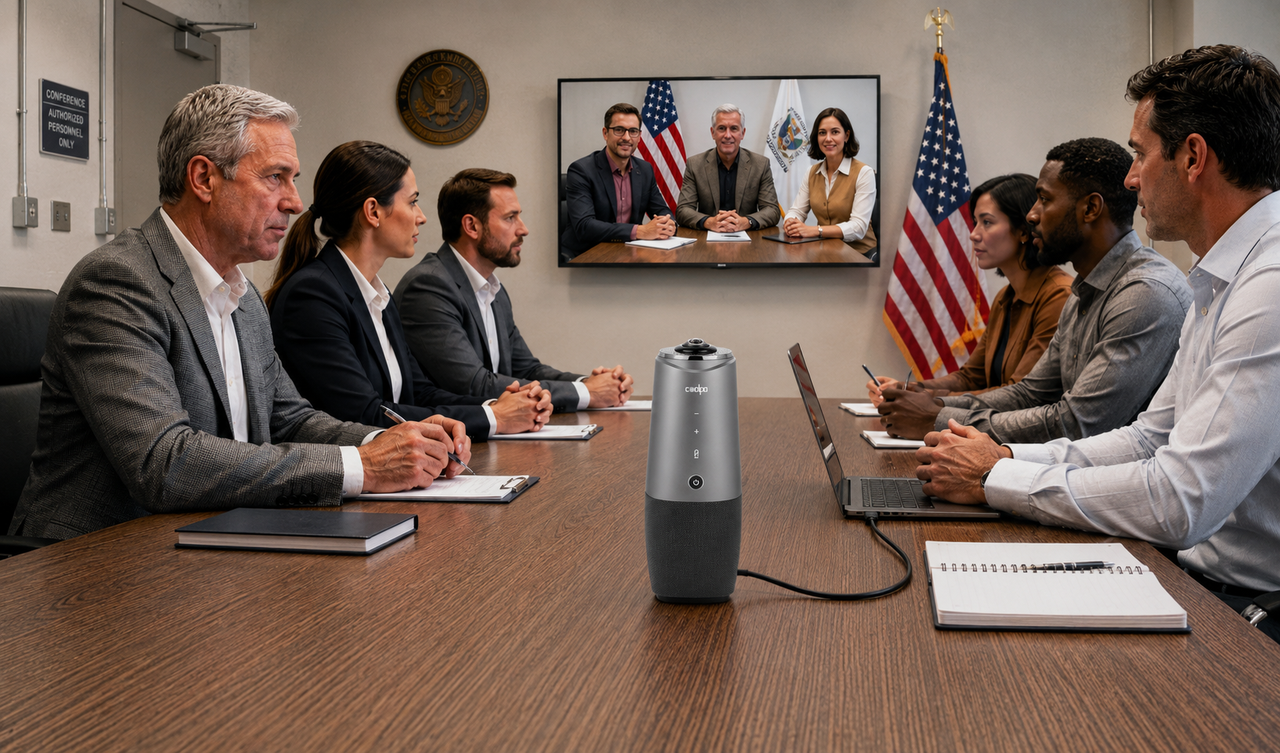
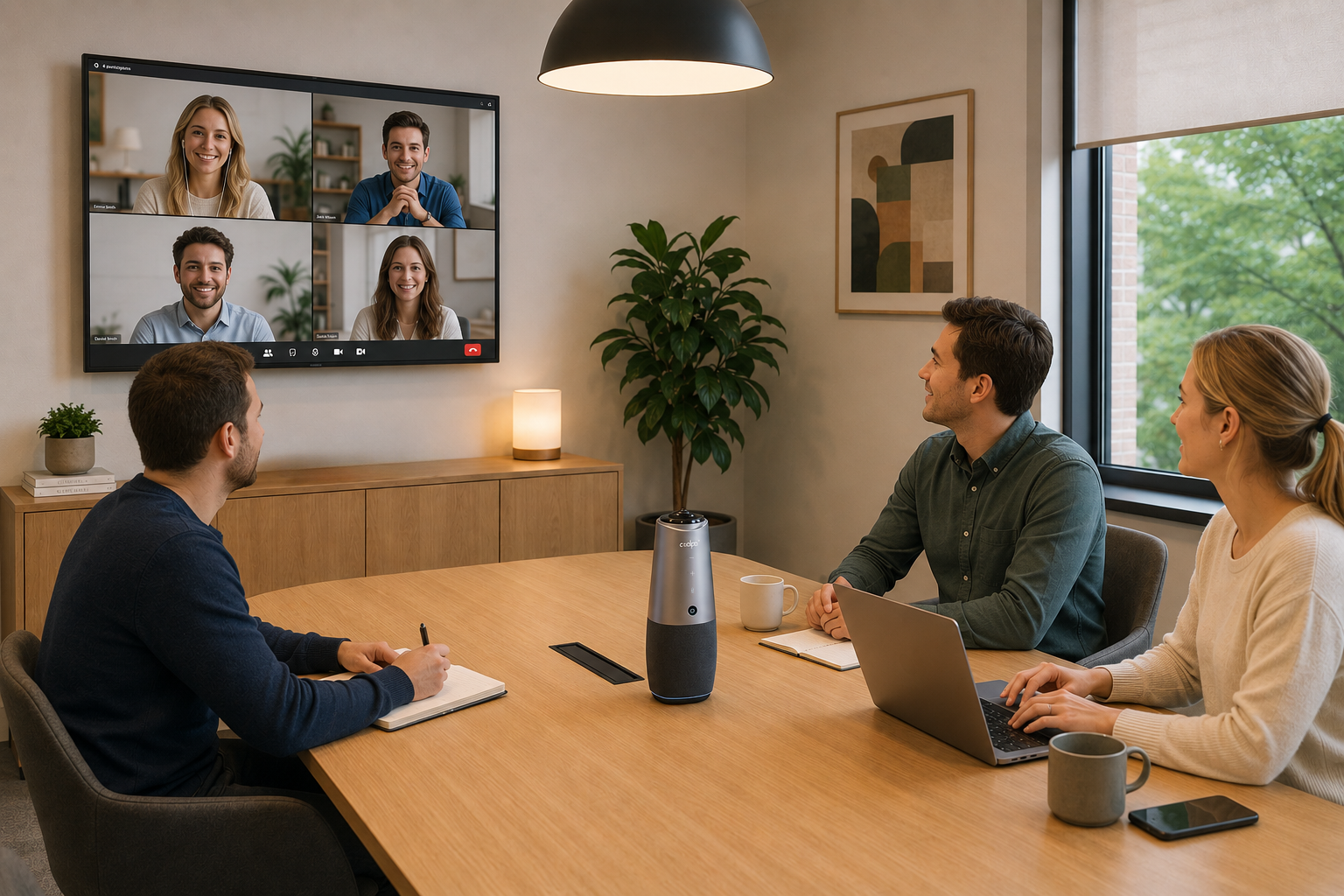
The Coolpo AI Pana ($598.98)
- Eliminates many black screen causes:
- Single USB connection (no complex drivers)
- Automatic detection by all platforms
- Built-in status LEDs show camera activity
- 360-degree capture ofr group meetings
- Works immediately without configuration
Frequently Asked Questions
1. Why does my camera show a black screen but audio still works?
This means your device detects the camera hardware, but a software issue prevents video display. The most common cause (40% of cases) is the wrong camera being selected in your meeting software settings—check the camera dropdown and switch to your active camera.
2. Can antivirus software cause camera black screens?
Yes. Antivirus programs like Kaspersky, Norton, and McAfee frequently block webcam access even when permissions appear correct. Temporarily disable your antivirus for 10 minutes to test, then add your video conferencing apps to the exception list if this fixes the issue.
3. Why does my camera work in some apps but show black in others?
This indicates app-specific settings or permission issues rather than hardware failure. Each application manages camera settings independently—check brightness, camera selection, and hardware acceleration settings within the specific app showing the black screen.
4. What does it mean if camera saturation is set to zero?
Zero saturation produces a completely black image even though the camera is functioning properly. This commonly happens on Dell and HP laptops after Windows updates. Go to Settings > Bluetooth & devices > Cameras and increase saturation to 50.
5. How do I know if my camera is broken or just has settings issues?
Test your camera in your computer's native camera app (Camera on Windows, Photo Booth on Mac). If it works there but shows black in meeting software, it's a settings issue. If it shows black everywhere, update or reinstall your camera drivers.
Summary
Black screen cameras are usually software or settings issues, not hardware failure. Work through fixes in this order: select the correct camera, toggle brightness controls, close antivirus, and update drivers. Most black screens resolve within 5 minutes. If you're fighting black screens repeatedly with the same camera, upgrade to a professional system like the Coolpo AI Pana ($598.98), which uses simpler architecture that eliminates common black screen triggers.
Recent blogs

.png)

Reliable
Innovation
Touch


