
How to Set Up a 360° Conference Camera: PANA Guide
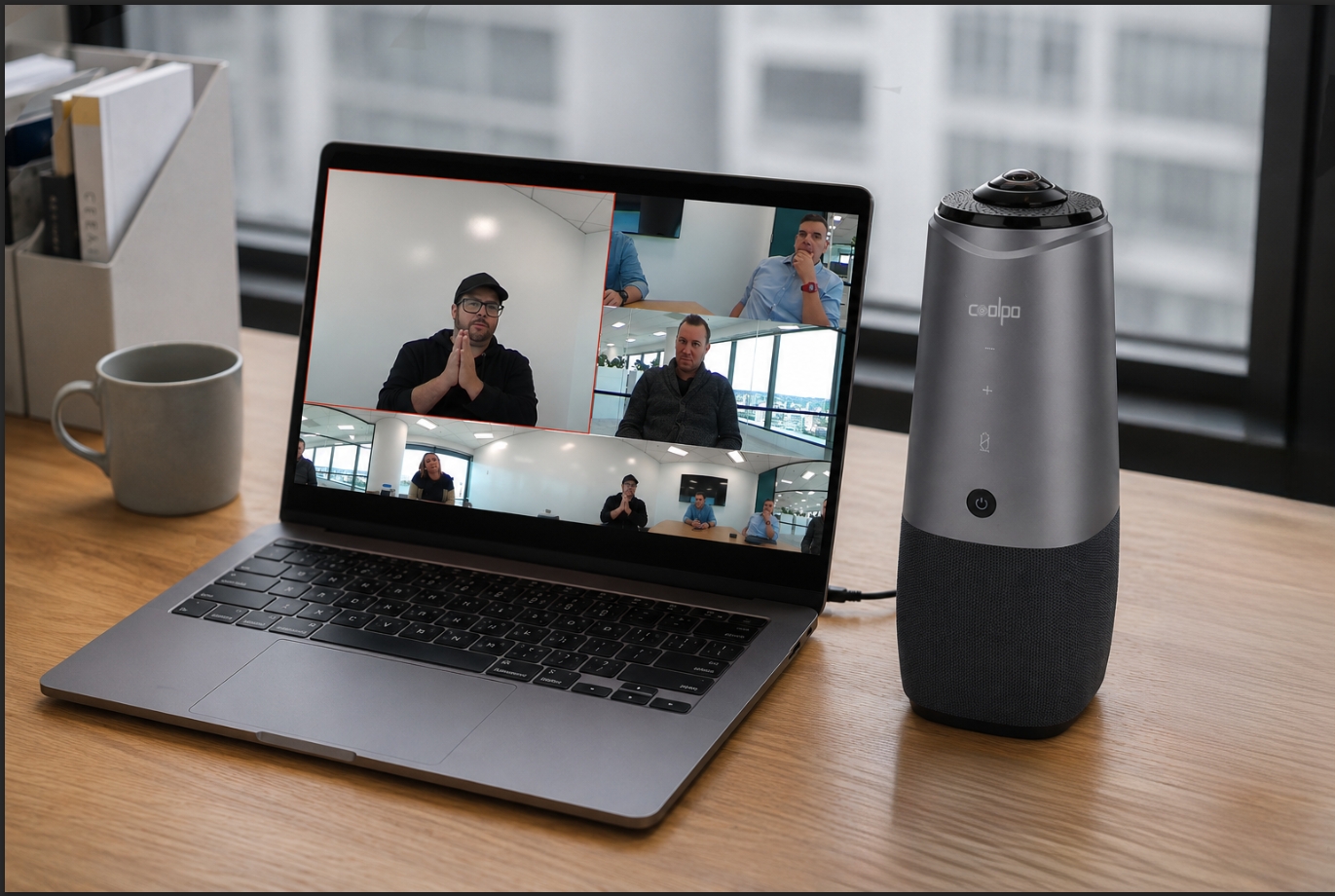
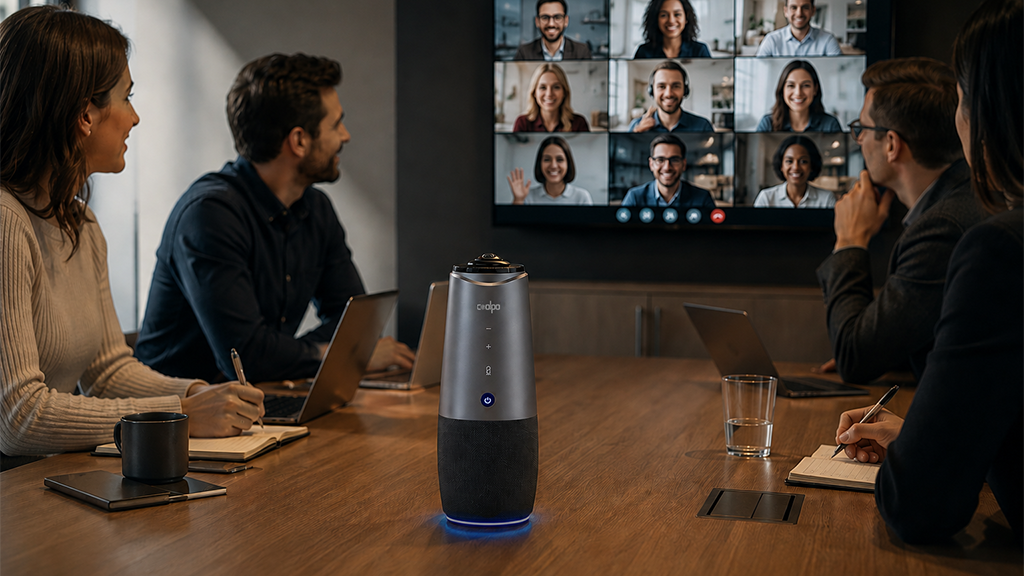
The Coolpo AI Huddle PANA sets up in under 10 minutes — place it at the center of your table, plug in the USB cable, and your video conferencing platform detects it automatically with no drivers required. This guide walks small business owners through every step, from unboxing to running your first hybrid meeting with AI-powered speaker tracking.
Table of Contents
What You Need Before You Start
Step-by-Step Setup Instructions
How AI Speaker Tracking Works
PANA vs. Competing 360° Cameras
Pro Tips for Better Hybrid Meetings
Troubleshooting Common Issues
Frequently Asked Questions
What You Need Before You Start
Before you unbox your Coolpo AI Huddle PANA, confirm you have the following:
- A conference room table (seats up to 15 people)
- A laptop or desktop with a USB-A or USB-C port
- A stable internet connection (minimum 10 Mbps upload recommended)
- An active account on Zoom, Microsoft Teams, Google Meet, or Skype
- The PANA unit, USB cable, and power adapter (included in box)
No additional drivers, software downloads, or IT support required. According to a 2025 virtual meeting statistics report, nearly 45% of businesses chose their video conferencing solution based primarily on ease of use — making plug-and-play simplicity the single most cited purchase factor. A reality the PANA's plug-and-play design was built around.
What Are The Step-by-Step Setup Instructions
Step 1 — Position the Camera at the Center of the Table
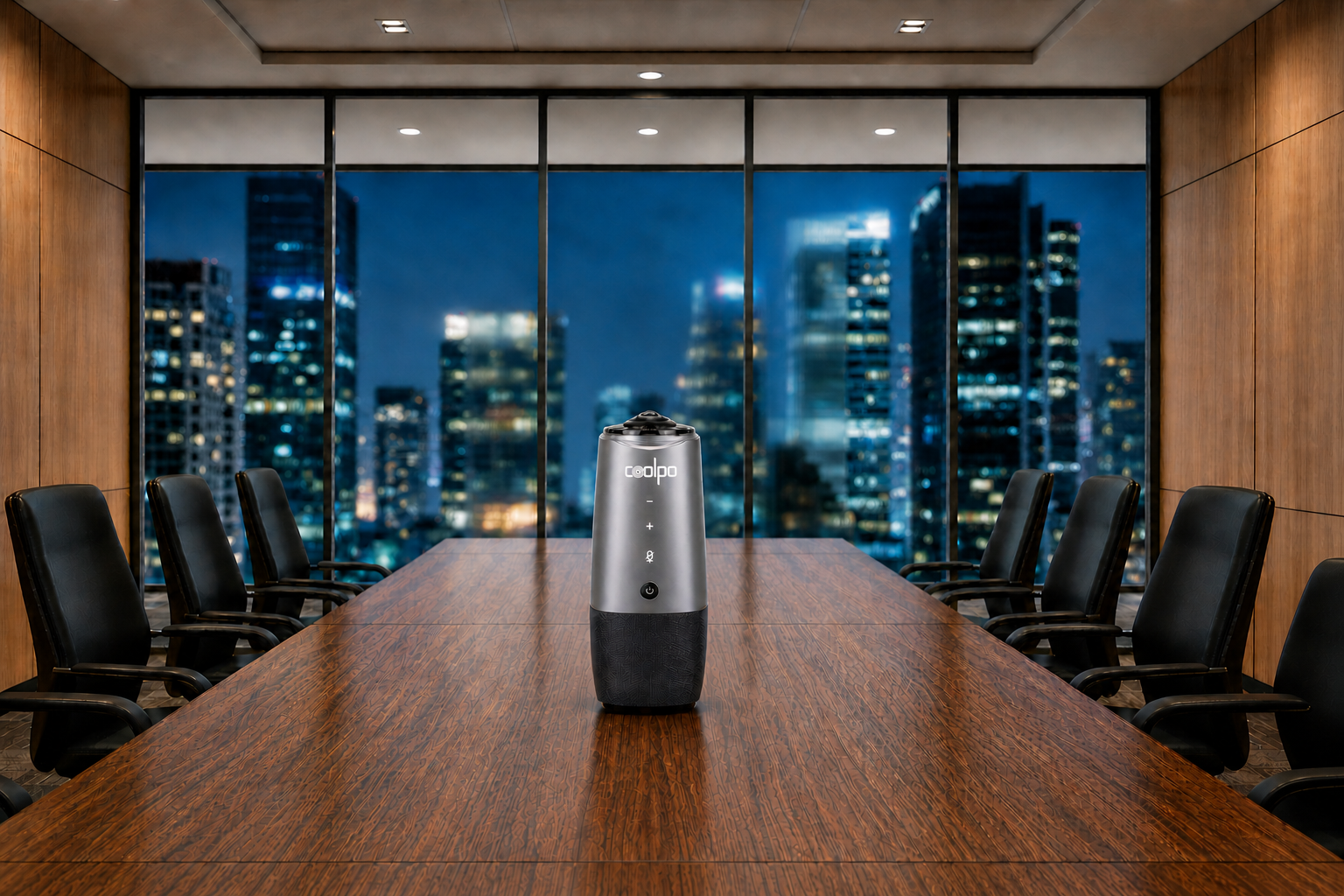
Place the Coolpo AI Huddle PANA at the physical center of your conference table. Because it captures a full 360° horizontal field of view, centering is critical — it ensures every seat is within the camera's sightline and within the 15-foot (4.5m) microphone pickup range.
Pro positioning note: Avoid placing the unit near a window or behind a monitor. Backlighting reduces video quality, and obstructions block the omnidirectional mic array.
Step 2 — Connect Via USB
Plug the included USB cable into the PANA unit and connect the other end to your laptop or desktop. The device is fully USB plug-and-play — no drivers or firmware updates are required on first use.
For rooms with a dedicated meeting room PC, connect to that machine instead of a laptop to eliminate the need to reconnect before every meeting.
Step 3 — Open Your Video Conferencing Platform
Launch your preferred platform — Zoom, Microsoft Teams, Google Meet, Webex, or Skype. The PANA will appear automatically in your camera and microphone dropdown menus.
In Zoom:
Go to Settings → Video → Camera → Select "Coolpo AI Huddle PANA"
- Go to Settings → Audio → Microphone → Select "Coolpo AI Huddle PANA"
In Microsoft Teams:
- Go to Settings → Devices → Camera and Audio → Select PANA for both inputs
Step 4 — Choose Your View Mode
Step 5 — Run a Test Meeting
Before your first real meeting, run a 2-minute test call. Verify:
✅ All seats are visible in panoramic mode
✅ Microphone picks up voices from the far end of the table
✅ AI speaker tracking activates when someone speaks
✅ Hi-Fi speaker output is clear with no echo
How AI Speaker Tracking Works
AI speaker tracking uses real-time voice and motion detection to automatically frame the active speaker — no manual camera pan required.
The Coolpo AI Huddle PANA's onboard AI processor analyzes audio input from its 8-microphone array and cross-references it with video data from the 4K fisheye lens (3840×2160 @ 30fps). When a participant speaks, the system isolates their position and renders a cropped, focused view in real time.
This matters in measurable ways. According to Bennet, 43% of remote workers reported that not feeling included in meetings was the most challenging part of working in a hybrid setup — making camera framing a direct factor in remote participant experience.
The onboard processor handles all computation locally, meaning the tracking response is near-instantaneous and does not depend on cloud processing or a stable internet connection to function.
How PANA vs. Other Competing 360° Conference Cameras Differs
Key takeaway: The Coolpo AI Huddle PANA is the only device in this comparison to deliver 4K resolution, the largest room capacity, and true plug-and-play USB connectivity — at a lower price than the Meeting Owl 4+. The Toucan 360 is cheaper but lacks AI speaker tracking, a built-in speaker, and meaningful microphone range, making it unsuitable for rooms larger than 6 people.
According to research compiled by TrueList, 90% of video call users say it is easier to get their point across when they can be clearly seen by other participants — directly linking visual clarity to communication effectiveness in meetings. 🔗
Pro Tips for Better Hybrid Meetings
1. Use panoramic mode for standups, AI mode for presentations. Switch to AI Speaker Tracking when one person is presenting. This gives remote participants a close-up view of the presenter rather than a wide room shot.
2. Set input gain before your first meeting. The 8-mic array is sensitive. In noisy office environments, slightly reduce microphone gain in your platform settings to minimize HVAC and ambient noise pickup.
3. Position the speaker toward your in-room team. The PANA's Hi-Fi speaker outputs audio omnidirectionally. If your in-room team sits primarily on one side, angle the unit slightly toward them for maximum speaker clarity.
4. Keep the table clear within 6 inches of the unit. Objects blocking the base of the PANA can interfere with the fisheye lens's bottom field of view. A clear surface ensures full 360° coverage.
5. Use a wired internet connection when possible. According to a 2024 virtual meeting statistics report aggregating data across multiple industry surveys, 49% of US employees say at least two virtual meetings they attend each week are disrupted due to technical issues — with unstable internet connections consistently cited as a primary cause. Using a wired Ethernet connection for your conference room PC directly reduces the risk of packet loss and signal interference that drives these disruptions.
Common Trouble Shooting Issues
Camera Not Detected by Laptop
Fix: Disconnect and reconnect the USB cable. Try a different USB port and confirm the cable is fully seated. On Windows, check Device Manager for an unknown device flag. On Mac, check System Preferences → Sound and Camera.
AI Speaker Tracking Not Activating
Fix: Confirm you are in "AI Mode" via the top button on the unit. Ensure the room has adequate lighting — the tracking algorithm requires at least 100 lux to function reliably. Dim rooms may prevent accurate speaker detection.
Echo or Feedback During Calls
Fix: Reduce speaker volume on the PANA unit. Ensure no second speakerphone or laptop speaker is active during the call. Confirm echo cancellation is enabled in your platform's audio settings — both Zoom and Teams include this by default.
Microphone Picking Up Only One Side of the Table
Fix: Reposition the unit to the geometric center of the table. The 15-foot pickup range is measured as a radius from the device. If your table is longer than 15 feet end-to-end, consider a supplemental microphone at one end.
Poor Video Quality in Panoramic Mode
Fix: Ensure the fisheye lens dome is clean — fingerprints significantly degrade 4K image quality. Use a soft microfiber cloth. Also verify your platform's video quality is set to "HD" or "4K," as some platforms default to lower resolution to conserve bandwidth.
Frequently Asked Questions
What is the Coolpo AI Huddle PANA and what does it do?
The Coolpo AI Huddle PANA is an all-in-one 360° conference room camera designed for hybrid meetings. It combines a 4K fisheye camera (3840×2160 @ 30fps), an 8-microphone array with a 15-foot pickup radius, and a Hi-Fi 75×120mm 360° speaker in a single USB plug-and-play device. Its onboard AI automatically tracks and frames whoever is speaking, so remote participants always see the active speaker without any manual intervention. It works natively with Zoom, Microsoft Teams, Google Meet, Webex, and Skype — no drivers or software installation required.
Learn more at coolpo.io.
Who is the PANA best suited for?
The PANA is best suited for small to mid-sized businesses running hybrid teams — specifically companies with conference rooms that seat 3 to 15 people. It is ideal for business owners who want enterprise-grade video conferencing without a dedicated IT team or complex AV setup. Because it requires no drivers, no configuration app, and no ceiling-mounted infrastructure, it is a strong fit for growing companies that need professional meeting technology that works immediately out of the box. It is also a practical choice for organizations with multiple meeting rooms that need a consistent, low-maintenance camera solution across locations.
How does the Coolpo AI Huddle PANA compare to the Meeting Owl 3?
The two devices differ most on resolution, room capacity, and price. The PANA captures 4K video (3840×2160), while the Meeting Owl 4+ maxes out at 1080p. The PANA supports rooms up to 15 people; the Owl 4+ supports up to 10. Both offer AI speaker tracking and built-in speakers. However, the Meeting Owl 3 requires the Owl Labs app for initial setup, while the PANA is true plug-and-play USB with no companion app needed. The Meeting Owl 3 is priced around $999, making the PANA a significantly stronger value proposition for most small business buyers who need 4K performance without the premium price.
Does the Coolpo AI Huddle PANA work with Microsoft Teams and Zoom?
Yes. The Coolpo AI Huddle PANA works natively with Microsoft Teams, Zoom, Google Meet, Webex, Skype, and any other platform that supports standard USB cameras and microphones. Because it uses standard USB audio and video drivers built into both Windows and macOS, no additional software installation is required. Simply plug it in, select it as your camera and microphone input in your chosen platform, and your meeting is ready. This platform-agnostic design is particularly valuable for businesses that use more than one conferencing platform across different teams or client relationships.
What room size is the Coolpo AI Huddle PANA designed for?
The PANA is optimized for rooms accommodating up to 15 people. Its 8-microphone array captures voices within a 15-foot (4.5-meter) radius, and its 360° fisheye lens covers the full horizontal circumference of a standard boardroom table. For very large rooms exceeding 20 feet in any direction, a supplemental microphone at one end may improve audio capture. For small huddle rooms of 2 to 4 people, the PANA performs well, though a smaller-footprint device like the Coolpo AI Huddle Mini Lite may be a more proportionate option for those environments.
What is the difference between panoramic mode and AI speaker tracking mode?
Panoramic mode displays a full 360° fisheye view of all room occupants simultaneously — best for all-hands meetings where remote participants need visibility into the whole room at once. AI speaker tracking mode uses the 8-microphone array and onboard AI to detect who is speaking and automatically renders a cropped, focused close-up of that person from the 4K source image, creating a TV-broadcast-style meeting experience. Both modes are available on the same device and can be toggled using the physical button on top of the unit or through the Coolpo companion app. Neither mode requires cloud processing to function.
You Might Also Like
If you're building out your hybrid meeting setup, explore these related Coolpo solutions:
Coolpo AI Huddle Mini Lite — Compact AI conference camera for small huddle rooms and home offices (1–4 people)
Coolpo DeskMate — AI-powered personal webcam with auto-framing for individual hybrid workers
Recent blogs

What Device and Camera Features Can Enhance Camera Performance on Laptops?


.png)
Reliable
Innovation
Touch


