
How To Set Up Video Telephony For Your Business?
Setting up video telephony for your business requires three core components: reliable internet connectivity (minimum 5 Mbps upload per participant), professional-grade cameras and audio equipment that capture all meeting participants clearly, and video conferencing platform licenses (Zoom, Teams, Meet) configured for your organization. Unlike consumer video calls, business telephony video systems need enterprise-level reliability, scalability across multiple meeting rooms, and integration with existing IT infrastructure for seamless deployment.
TL;DR
Setting up video telephony for your business involves five steps: (1) assess your internet bandwidth and upgrade if needed (5-10 Mbps per meeting room), (2) select video conferencing platform(s) based on business needs (Zoom, Teams, Meet), (3) equip meeting rooms with professional cameras like the Coolpo AI Pana ($598.98) and quality displays, (4) configure network QoS to prioritize video traffic, and (5) train employees on system usage and best practices. Start with one pilot room to validate the setup before rolling out telephony video across your organization.
Why Video Telephony Is Essential for Modern Business
Video telephony has shifted from "nice-to-have" to business-critical infrastructure. According to Grand View Research, the global video conferencing market reached $7.8 billion in 2024 and is projected to grow at 12.5% annually through 2030, driven by permanent hybrid work adoption and distributed team collaboration needs.
The difference between consumer video calls and business telephony video systems is reliability, scalability, and integration. Consumer solutions work for occasional use, but businesses need systems that handle daily operations: client meetings, team collaboration, remote interviews, training sessions, and executive communications. Research from Gartner shows 39% of knowledge workers now operate in hybrid arrangements, making professional video telephony infrastructure essential rather than optional.
Setting up telephony video correctly the first time prevents costly retrofits, user frustration, and productivity loss from technical issues during critical business meetings.
How to Set-up video telephony?
Step 1: Assess Your Internet Infrastructure
Video telephony demands reliable, high-bandwidth internet connectivity. Poor infrastructure causes the most common telephony video failures—frozen video, dropped calls, and audio sync issues.
Bandwidth requirements:
- Minimum 5 Mbps upload per simultaneous meeting participant
- 10 Mbps upload recommended for HD video quality
- 25+ Mbps upload for multiple concurrent meeting rooms
- Symmetrical business internet preferred over residential connections
Calculate your needs
If you expect 3 meeting rooms running simultaneously with 4 participants each, you need minimum 60 Mbps upload (5 Mbps × 12 participants). Add 20% buffer for reliability, totaling 72 Mbps upload bandwidth.
Network assessment steps:
- Test current speeds at peak usage times (not just off-hours)
- Run speed tests from actual meeting room locations, not just IT closet
- Identify bottlenecks (router capacity, switch speeds, WiFi coverage)
- Upgrade business internet plan if current speeds fall short
Pro tip:
Wired ethernet connections for telephony video equipment are always superior to WiFi. Run ethernet cables to each meeting room during initial setup rather than troubleshooting WiFi issues later.
Step 2: Select Your Video Conferencing Platform
Your telephony video platform choice impacts user experience, integration capabilities, and long-term costs. Most businesses choose one primary platform while maintaining secondary options for client compatibility.
Top business telephony video platforms:
Zoom ($150-$250/year per user):
- Largest market share, familiar to most users
- Excellent reliability and video quality
- Strong third-party integration ecosystem
- Zoom Rooms for dedicated conference room setups
Microsoft Teams ($60-$220/year per user)
- Best for Microsoft 365 organizations
- Integrated with Outlook, SharePoint, Office apps
- Teams Rooms for conference room deployment
- Included with many Microsoft 365 licenses
Google Meet ($60-$180/year per user)
- Best for Google Workspace organizations
- Seamless Gmail/Calendar integration
- Strong security and admin controls
- Hardware-as-a-Service options available
Platform selection criteria
- Existing IT ecosystem (Microsoft 365, Google Workspace)
- Client/partner platform preferences
- Required integrations (CRM, project management)
- Security and compliance requirements
- Budget constraints
Multi-platform strategy: Many businesses license one primary platform for internal meetings and maintain secondary platform access for external meetings with clients using different systems.
Step 3: Equip Meeting Rooms with Professional Hardware
Consumer webcams and laptop cameras create poor telephony video experiences in business settings. Professional conference room equipment delivers the reliability and quality businesses need.
Essential hardware by room type:
Small huddle room (3-6 people) - Budget: $600-$1,200
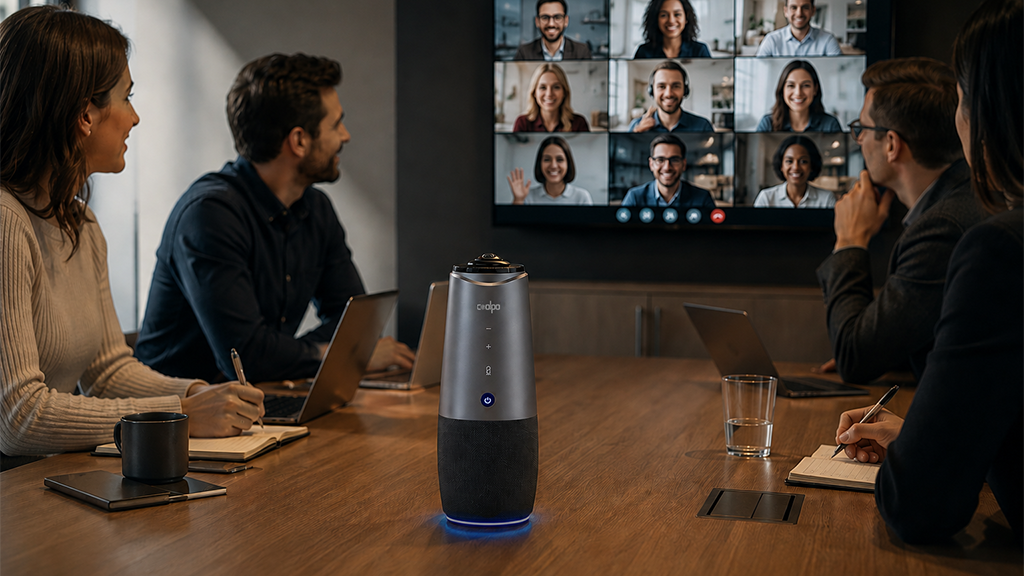
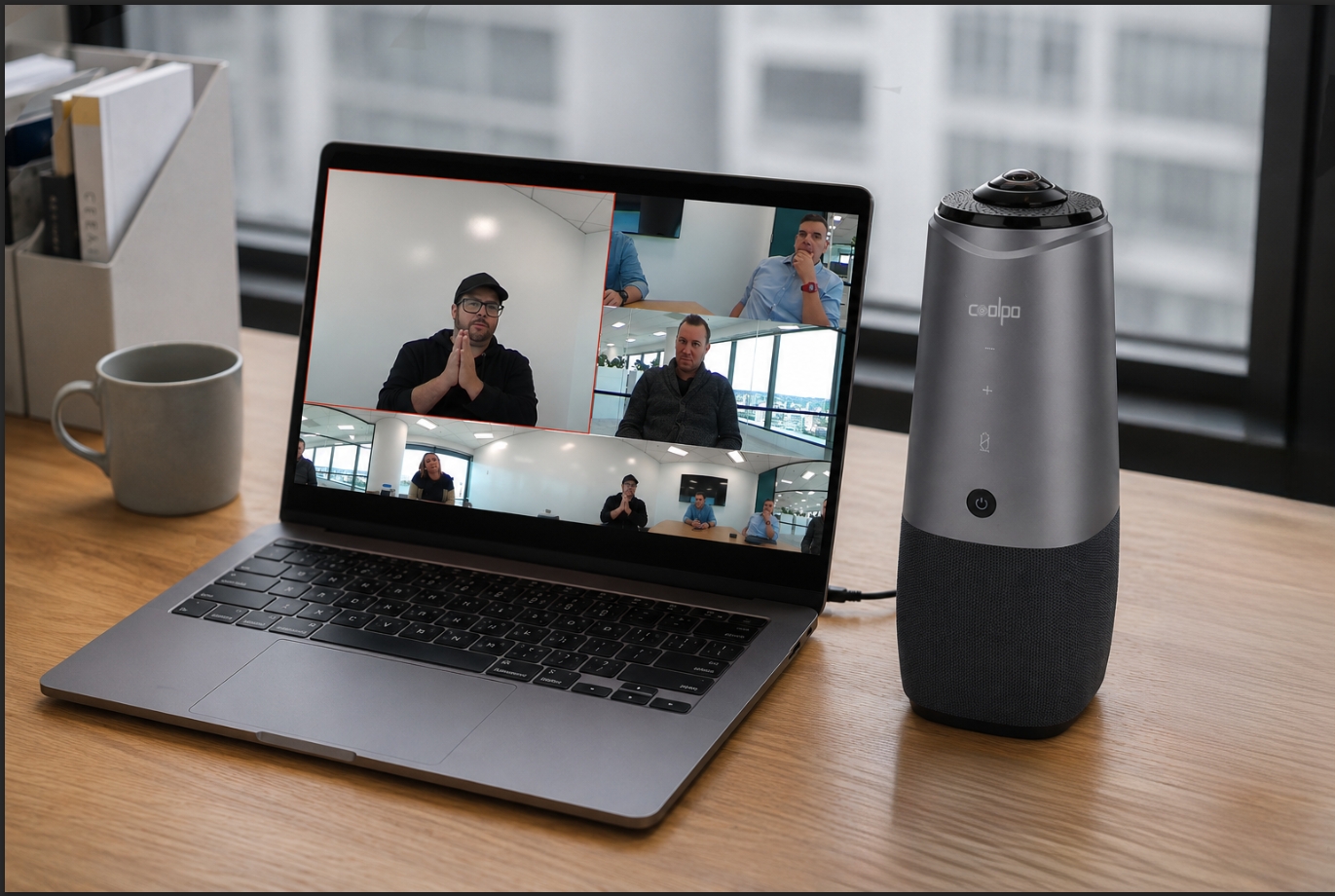
- Professional conference camera: Coolpo AI Pana ($598.98)
- 360° coverage captures everyone equally
- 8-mic array with 15-foot pickup eliminates separate audio
- 4K video maintains clarity across video telephony platforms
- Plug-and-play USB works with Zoom, Teams, Meet
2. 40-50" commercial display ($300-$600)
3. Meeting room PC or existing laptop
Medium conference room (6-12 people) - Budget: $1,500-$3,000
1. Professional camera system ($600-$1,500)
2. Commercial-grade display 55-65" ($500-$1,200)
3. Wireless presentation system ($300-$600)
4. Dedicated meeting room PC (optional: $400-$800)
Large boardroom (12-20 people) - Budget: $3,000-$8,000
1. Multiple cameras or PTZ system ($1,000-$3,000)
2. Ceiling microphone array ($800-$2,000)
3. Large display or dual screens ($1,500-$3,000)
4. Control system and room automation ($500-$2,000)
Why Coolpo AI Pana excels for business telephony video
The 360° coverage ensures all participants are visible regardless of seating—critical for professional business meetings. The integrated 8-mic array eliminates the complexity of separate audio equipment while delivering enterprise-grade sound quality. Single USB connection simplifies IT deployment across multiple rooms.
Step 4: Configure Network Quality of Service (QoS)
Quality of Service (QoS) prioritizes telephony video traffic over less time-sensitive data like email downloads or file transfers, preventing video quality degradation during peak network usage.
QoS configuration steps:
1. Identify video traffic:
- Document IP addresses of all video conferencing equipment
- Note platform-specific ports (Zoom: UDP 8801-8810, Teams: UDP 3478-3481)
- Tag video telephony traffic for priority handling
2. Configure router QoS:
- Access router admin interface
- Enable QoS/traffic shaping features
- Set video conferencing to "High Priority"
- Allocate 40-60% bandwidth guarantee for video traffic
- Test during peak usage to verify prioritization works
Network segmentation
Create separate VLAN for telephony video equipment to isolate traffic from general business network. This prevents other devices from competing for bandwidth during critical video calls.
Consult IT professionals
If your team lacks networking expertise, hire consultants for initial QoS setup. Proper configuration prevents 90% of video quality issues.
Step 5: Deploy and Test Your Telephony Video System
Pilot deployment in one room validates your setup before company-wide rollout. This catches configuration issues, training gaps, and hardware problems when they're easy to fix.
Pilot room deployment:
Week 1 - Installation:
- Install all hardware in pilot room
- Configure platform settings and user accounts
- Connect equipment and verify detection
- Run initial test calls with IT team
Week 2 - Internal testing:
- Schedule real meetings in pilot room
- Gather feedback from 5-10 employees
- Document any issues or confusion points
- Refine setup based on feedback
Week 3 - External testing:
- Conduct client/partner calls from pilot room
- Test cross-platform scenarios (your Zoom to their Teams)
- Verify quality, reliability, and user experience
- Make final adjustments
Week 4 - Validation and documentation:
- Create setup guides for additional rooms
- Train IT staff on troubleshooting
- Finalize equipment specifications for rollout
- Order equipment for remaining rooms
Testing checklist:
- Video quality clear at 1080p or higher
- Audio pickup covers all seats in room
- Platform switching works (Zoom, Teams, Meet)
- Wireless presentation functioning
- Display visible from all seats
- Network performance stable during calls
- User setup time under 2 minutes
Step 6: Train Employees and Create Support Resources
Even the best telephony video infrastructure fails if employees don't know how to use it. Invest in training to maximize ROI and adoption.
Training program structure:
Live training sessions (30-60 minutes)
- How to start/join meetings in each room
- Camera and microphone selection
- Wireless presentation system usage
- Common troubleshooting steps
- Who to contact for support
Quick reference guides
- Laminated cards in each meeting room
- Step-by-step joining instructions with screenshots
- Troubleshooting flowchart for common issues
- IT support contact information
Video tutorials
- Record short videos (2-3 minutes each)
- Host on company intranet or learning platform
- Cover: starting meetings, screen sharing, inviting guests
- Make searchable and easily accessible
Ongoing support:
- Designate "video champions" in each department
- Regular check-ins to identify pain points
- Quarterly refresher training for new features
- Feedback loop for continuous improvement
Common Video Telephony Setup Mistakes
Mistake 1: Undersizing internet bandwidth
Many businesses estimate bandwidth based on peak user count but forget to account for simultaneous meetings across multiple rooms. Calculate bandwidth for all rooms running concurrently, not individually.
Mistake 2: Using consumer-grade equipment
Laptop webcams and cheap USB cameras create unprofessional telepho video experiences. The $100 saved on equipment costs thousands in poor client impressions and lost productivity.
Mistake 3: Ignoring network configuration
Installing great hardware on a poorly configured network produces terrible results. QoS configuration and network segmentation are not optional for reliable business telephony video.
Mistake 4: No testing before full deployment
Rolling out telephony video across 10 meeting rooms simultaneously means discovering problems in 10 places at once. Pilot one room first, validate the setup, then replicate the working configuration.
Mistake 5: Skipping employee training
Technology adoption fails when users don't understand the system. Even intuitive telephony video equipment benefits from 30 minutes of training to ensure confident usage.
Frequently Asked Questions
1. How much does it cost to set up video telephony for a small business?
Small businesses (5-20 employees) typically spend $1,500-$5,000 for initial telephony video setup: $600-$1,200 per meeting room for equipment (camera, display, cables), $150-$250/year per user for platform licenses (Zoom, Teams), and potential internet upgrade costs ($50-$200/month). The Coolpo AI Pana at $598.98 provides professional camera and audio in one device, reducing per-room costs significantly.
2. Do I need a dedicated IT person to manage video telephony?
Not necessarily. Small setups (1-3 rooms) can be managed by technically competent staff with vendor support. Once you exceed 5 meeting rooms or 50 users, designating someone to own telephony video systems (even part-time) improves reliability and user satisfaction significantly.
3. Which video conferencing platform is best for business telephony video?
It depends on your existing IT ecosystem. Microsoft Teams works best for Microsoft 365 organizations, Google Meet for Google Workspace users, and Zoom for platform-agnostic setups or highest compatibility with external partners. Most businesses benefit from licensing one primary platform while maintaining basic secondary platform access for client compatibility.
4. Can I use WiFi for video telephony or do I need ethernet cables?
Wired ethernet connections are strongly recommended for telephony video equipment in fixed meeting rooms. WiFi works for mobile users and personal devices, but conference room cameras and displays should connect via ethernet for maximum reliability. WiFi introduces latency, packet loss, and bandwidth sharing that degrades video quality.
5. How do I know if my current internet connection can handle video telephony?
Test your upload speed (not just download) at peak business hours. You need minimum 5 Mbps upload per simultaneous video participant. If you have 3 meeting rooms with 4 people each running concurrently, that's 60 Mbps upload minimum. If your current speeds fall short, upgrade business internet before deploying telephony video systems—no amount of expensive equipment compensates for inadequate bandwidth.
Summary
Setting up video telephony for your business involves six key steps: assess internet bandwidth (5-10 Mbps upload per room minimum), select video conferencing platform (Zoom, Teams, or Meet based on IT ecosystem), equip meeting rooms with professional hardware like the Coolpo AI Pana ($598.98) for camera and audio, configure network QoS to prioritize video traffic, deploy a pilot room to validate setup, and train employees on system usage. Start small with one meeting room, validate the configuration works reliably, then replicate across additional spaces. Proper telephony video infrastructure pays for itself through improved collaboration, reduced travel costs, and professional client interactions.
Recent blogs

.png)
.png)
.png)
Reliable
Innovation
Touch


