
Why Your Conference Camera Is Not Recognized (And How to Fix It)
Conference camera recognition issues are commonly caused by faulty USB connections, overloaded USB hubs, outdated drivers, incorrect system permissions, conferencing software conflicts, or improper device setup. Fixing these problems usually involves reconnecting the device, updating drivers, checking software permissions, or using a more stable USB connection.
Below are the most common reasons conference cameras are not detected and how to fix them for more stable video conferencing and hybrid meetings.
1. Faulty or Loose USB Connection
One of the most common causes of camera detection problems is an unstable USB connection.
Common signs include:
- Random disconnections
- Device not detected
- Intermittent video signal
- Camera appearing and disappearing
How to Fix It
- Reconnect the USB cable securely
- Try another USB port
- Replace damaged cables
- Avoid loose USB adapters
- Test the device on another computer
Some USB cables only support charging and not data transfer, which can prevent proper detection.
2. Unsupported or Overloaded USB Hubs
High-resolution and AI-powered conferencing devices often require stable power and bandwidth.
Problems caused by unsupported hubs may include:
- Recognition failures
- Unstable video
- Random disconnects
How to Fix It
- Connect the camera directly to the computer
- Use powered USB hubs if necessary
- Reduce the number of connected USB devices
Stable USB connectivity is important for reliable hybrid meetings.
3. Outdated or Corrupted Drivers
Outdated drivers can prevent the operating system from communicating properly with the device.
How to Fix It
On Windows
1. Open Device Manager
2. Locate the conferencing device
3. Right-click the device
Select:
- Update Driver
- Or Uninstall Device and reconnect it
On Mac
Check for macOS updates
Reconnect the device after updating
Verify camera permissions are enabled
Keeping drivers updated improves compatibility and stability.
4. Camera Permission Settings
Sometimes the device is connected correctly but blocked by system privacy settings.
On Windows
Go to:
Settings → Privacy → Camera
Enable:
- Camera Access
- App Permissions
On Mac
Go to:
System Settings → Privacy & Security → Camera
Allow access for:
- Zoom
- Microsoft Teams
- Google Meet
- Other conferencing apps
Without proper permissions, video conferencing software may not detect the device.
5. Conferencing Software Conflicts
Applications like Zoom, Microsoft Teams, or Google Meet may accidentally select the wrong camera or conflict with another app already using it.
Common problems include:
- Black screen during meetings
- Camera unavailable message
- Incorrect device selected
How to Fix It
- Open conferencing software settings
- Manually select the correct device
- Close apps currently using the camera
- Restart the conferencing platform
6. Incorrect Device Setup
Some conferencing systems require proper startup order, firmware initialization, or external power before connecting through USB.
How to Fix It
- Power on the device first
- Wait for full startup
- Reconnect the USB cable afterward
- Verify firmware is updated
Proper setup helps prevent detection issues during meetings.
Common Issues in Hybrid Meeting Rooms
Modern hybrid meeting rooms often combine:
- Multiple USB devices
- Wireless presentation systems
- Conferencing software
- AI-powered conferencing hardware
This can create:
- USB conflicts
- Bandwidth limitations
- Unstable connections
- Software interference
Businesses should prioritize:
- Organized cable management
- Compatible conferencing systems
- Stable USB connectivity
- Updated meeting room hardware
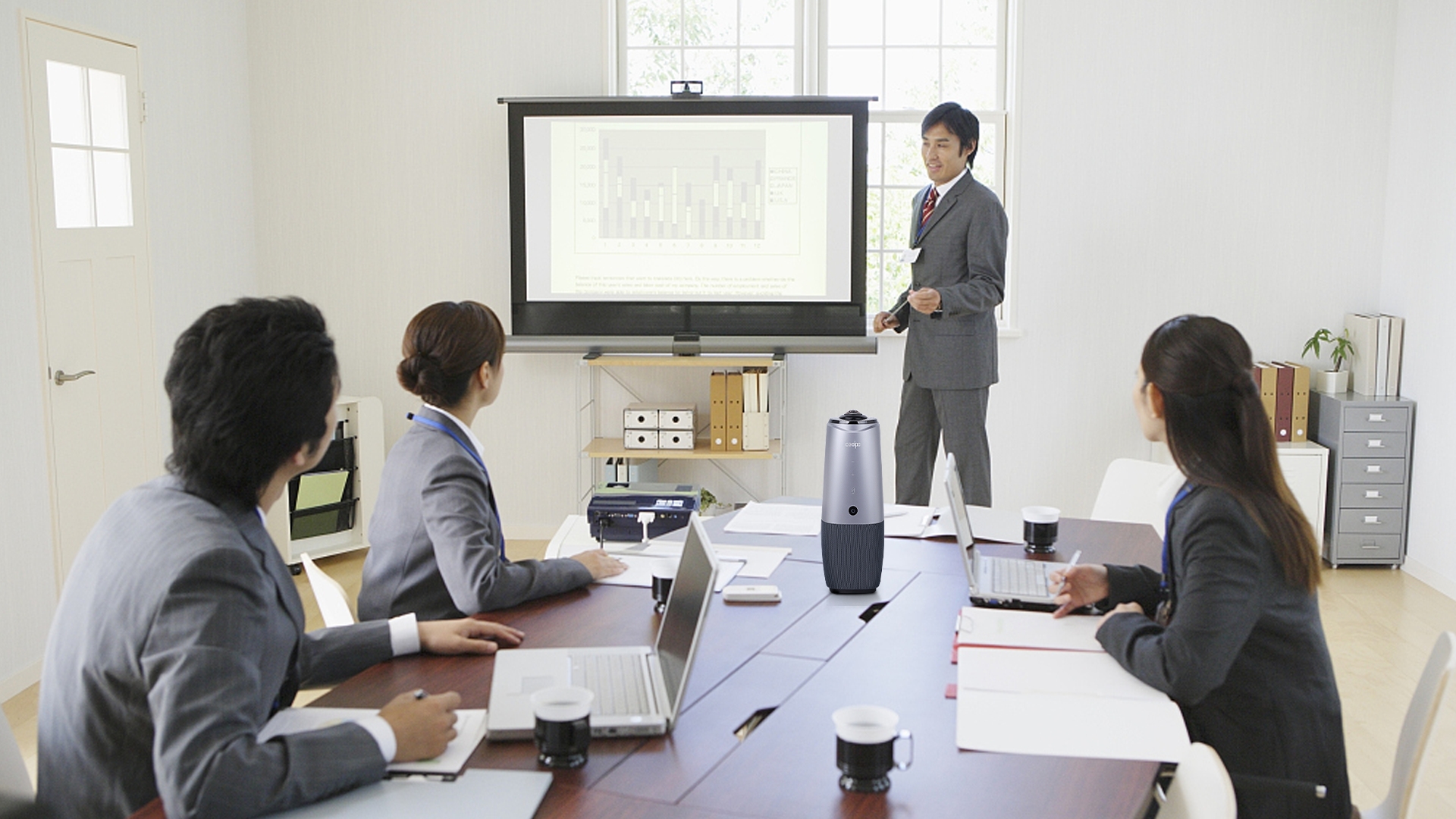
Using reliable all-in-one conferencing solutions like the Coolpo PANA can help simplify meeting room setups. WIth this device, it combines camera, speaker and microphone making it an all-in-one solution and reduce technical issues caused by multiple disconnected devices.
Best Practices for Reliable Connectivity
To reduce device recognition issues:
- Use certified USB cables
- Avoid unsupported USB hubs
- Keep drivers updated
- Update conferencing software regularly
- Organize meeting room cabling
- Verify camera permissions
- Restart conferencing systems periodically
Reliable conferencing setups help improve:
- Meeting stability
- Communication quality
- Hybrid collaboration
- Remote participant experience
Conference camera recognition problems are usually caused by connectivity, software, driver, or setup issues rather than hardware failure. Modern hybrid meeting environments depend on stable communication between conferencing devices, conferencing software, USB systems, audio equipment, and operating systems. Proper setup, updated software, and stable connectivity are essential for maintaining reliable meeting performance in modern conference rooms.
Recent blogs




How Clear Audio for Legal Intake Specialists Ensures Accurate Client Intake

Reliable
Innovation
Touch


